Adult Websites to Block: The Top List and How to Block Them in Chrome

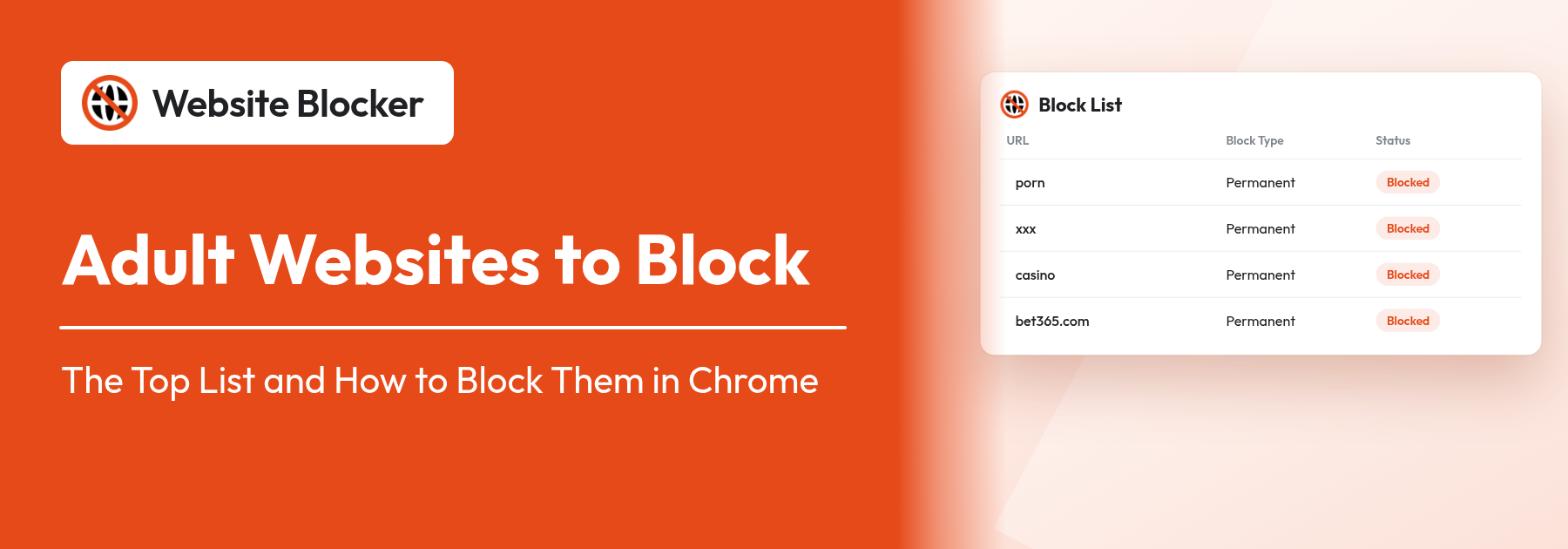
Adult websites to block: a Website Blocker block list with porn, xxx and casino rules

Looking for a list of adult websites to block? Below you'll find the best-known porn, live cam, adult dating, random video chat and gambling sites, sorted by category, plus a set of words that block thousands of similar sites in one go. We also show you how to block adult websites in Chrome with a free extension, how to close the usual loopholes (Incognito, guest mode, uninstalling) and how to cover phones and other apps with SafeSearch and a family DNS filter.

Extension: https://chromewebstore.google.com/detail/website-blocker/kniediipngcpmbmpeacaoinhoeipfina

Why block adult websites?

Most children see pornography long before anyone talks to them about it. In a 2023 survey of more than 1,300 US teens by Common Sense Media, 73% of 13 to 17 year olds said they had watched porn online, 54% had first seen it by age 13, and the average age of first exposure was 12. Much of that first contact is accidental: a mistyped address, a pop-up or a link shared in a chat.

People block adult websites for three main reasons:

  • To protect children on a family or school computer, so a wrong click doesn't open explicit content.
  • To break a habit of their own. A block adds a pause between the urge and the click, which is often all you need to change course.
  • To keep shared and work computers clean, for example in a classroom, a library, an office or a computer that guests use.

The method is the same in every case: block the best-known sites by name, add word rules that catch the long tail, and close the loopholes that make a blocker easy to get around.

The top list of adult websites to block

Thousands of new adult domains are registered every month, so no list is ever complete. The sites below are the big, widely known names in each category, and they are the ones a child or a tired adult is most likely to type or be sent to. Block them first, then add the word rules from the next section to catch copies, mirrors and smaller sites.

Add each domain without https:// or www. Website Blocker's default Contain filter matches every address that contains the text, so pornhub.com also blocks www.pornhub.com, its country subdomains and every page on the site.

Porn video sites

These "tube" sites host most of the free explicit video online and get the most traffic of any adult sites.

Domain to blockWhat it is
pornhub.comThe best-known porn video site
xvideos.comPorn video site, one of the most visited websites in the world
xnxx.comPorn video site run alongside xvideos
xhamster.comPorn video and photo site
spankbang.comPorn video site
redtube.comPorn video site
youporn.comPorn video site
eporner.comPorn video site

Live cam sites

Cam sites stream live explicit shows and let viewers chat with performers, which also exposes young users to direct contact with strangers.

Domain to blockWhat it is
chaturbate.comLive cam site
stripchat.comLive cam site
bongacams.comLive cam site
livejasmin.comLive cam site
myfreecams.comLive cam site
camsoda.comLive cam site

Adult subscription sites

Creators sell explicit photos and videos to subscribers on these platforms. Leak and mirror sites often reuse the names, which is why the word rules below include them.

Domain to blockWhat it is
onlyfans.comSubscription platform best known for adult content
fansly.comSubscription platform for adult creators

Adult dating and hookup sites

These sites are for adults only and carry a real risk of grooming and scams for younger users. Mainstream dating apps are also 18+, so many parents block them as well.

Domain to blockWhat it is
adultfriendfinder.comAdult hookup site
ashleymadison.comDating site for affairs
tinder.comDating app, 18+ only
bumble.comDating app, 18+ only

Random video chat sites

Random video chat pairs you with a stranger on camera, and explicit content is common. Omegle, the best-known site of this kind, closed in November 2023, but many copies have appeared since, often with "omegle" in the name.

Domain to blockWhat it is
chatroulette.comRandom video chat
ome.tvRandom video chat
emeraldchat.comRandom text and video chat

Gambling sites

Gambling isn't explicit content, but it is adults-only and highly addictive, so it usually belongs on the same list.

Domain to blockWhat it is
bet365.comSports betting and casino
stake.comCrypto casino and sports betting
1xbet.comSports betting and casino
betway.comSports betting and casino
pokerstars.comOnline poker and casino
draftkings.comSports betting and fantasy sports
888casino.comOnline casino

Block words, not just websites

A list of domains only blocks the sites on it. Word rules block every address that contains a word, so one rule can stop thousands of sites you have never heard of. In Website Blocker, any rule saved with the Contain filter works this way: enter porn instead of a domain, and every address that contains "porn" is blocked, from pornhub.com and youporn.com to sites that don't exist yet. It also stops many searches for that word, because the search terms are part of the results page's address.

Choose words that rarely appear in the address of a normal site. These work well, and the last column shows what to watch for:

Word ruleWhat it catchesWatch out for
pornMost porn sites, porn searches, "porn" in any addressAlso blocks articles and help sites with "porn" in the address, such as addiction support pages
xxxSites on the .xxx domain and names with "xxx"Very few false positives
hentaiExplicit anime and manga sitesVery few false positives
nsfw"Not safe for work" pages and communities with nsfw in the addressVery few false positives
onlyfansOnlyFans and the leak sites that copy its nameAlso blocks news articles with the name in the address
omegleOmegle copies and clonesVery few false positives
casinoOnline casinosAlso blocks pages about casino films or hotels
bettingBetting sites and betting tips pagesDon't use "bet" on its own: it is part of "alphabet", "better" and "between"
sexA very large number of adult sitesAlso blocks Sussex, Essex and Middlesex sites, sex-education pages and some health sites. Use with care.

After you add a word rule, open a few sites you need (school, work, news) to check nothing useful is caught. If a word blocks too much, delete it and use a longer, more specific word instead. You can read more about how Contain and Exact rules match addresses.

How to block adult websites in Chrome with Website Blocker

Website Blocker is a free Chrome extension that blocks as many websites as you like. Here is how to set it up as an adult-content blocker in about ten minutes.

1. Install the extension

Open the Website Blocker page on the Chrome Web Store, click Add to Chrome, then Add extension. Click the puzzle-piece Extensions icon in the toolbar and pin Website Blocker so its icon is always visible. It also works in Microsoft Edge and Firefox.

2. Add the sites from the list

Click the extension icon, type a domain into the Block Websites field, leave Block Type on Permanent Block and click Block. Repeat for each site. For a longer list, use CSV import instead. Block one site by hand, then open Settings (the gear icon) and click Export next to the Block List. The CSV file you get has the right columns. Paste the other domains into the URL column, one per row, copy the rest of the first row into each new row, save, and load the file with Import. Every row is added at once. The CSV import guide explains the columns.

3. Add your word rules

Add the words from the table above the same way you added the domains: type the word, keep Permanent Block, and make sure the Filter URL setting is Contain (the default). Exact matches a domain or one page, not a word, so a word rule needs Contain.

4. Block pages by what they say (Pro)

Some explicit pages have harmless-looking addresses. Keyword Blocking, a Pro feature, reads the text and title of each page you open and blocks the page if it contains one of your keywords, whatever its address. Use explicit terms that normal pages rarely contain. A broad word such as "porn" will also block news stories and health articles that mention it.

5. Close the loopholes

A blocker is only as strong as its easiest workaround. Check these before you rely on it:

  • Incognito: Chrome doesn't run extensions in Incognito windows unless you allow it. Open chrome://extensions, click Details under Website Blocker and turn on Allow in Incognito. See blocking websites in Incognito mode.
  • Password: use Create Password so nobody can edit the block list or switch blocking off without it. See password protection.
  • Turning it off on impulse: if you are blocking for yourself, Disable Cooldown (Pro) adds a wait before the extension can be turned off, which is often enough for the urge to pass. See the cooldown timer.
  • Removing the extension: on Windows, a Chrome policy can install the extension so it can't be removed, and Firefox has the same option in policies.json. Follow the guides for Chrome on Windows and Firefox.
  • Guest mode and new profiles: extensions don't run in Chrome's guest mode or in a new Chrome profile. On a child's Windows computer, you can turn both off with the Chrome policies BrowserGuestModeEnabled and BrowserAddPersonEnabled, set the same way as the removal policy.
  • Other browsers: a Chrome extension doesn't block anything in Edge or Firefox. Install Website Blocker in every browser on the computer, or remove the browsers nobody needs.

For young children: allow only approved sites

For a young child, a list of what to block is the wrong way round. It is safer to list the handful of sites they actually use and block everything else. Website Blocker's Whitelist mode does exactly that: when it is on, all websites are blocked except the ones in your whitelist. Add their school portal, a video site for kids and a few games, and nothing else can open, adult or not.

Each site in the whitelist can be a Permanent Allow, an Attempt Wise Allow (a set number of visits) or a Schedule whitelist entry that is only allowed during the hours you choose. When the child is older, switch Whitelist mode off and go back to the block list and word rules.

Cover the whole device: SafeSearch and family DNS

A browser extension protects the browser it is installed in. Two free settings add a second layer that also covers other browsers and apps.

SafeSearch hides explicit results, images and videos in Google search. Turn it on at google.com/safesearch. For a child with a supervised Google account, Google Family Link keeps SafeSearch on so the child can't switch it off. Bing and YouTube have similar settings (SafeSearch and Restricted Mode).

A family DNS filter blocks known adult domains for every app on the device, or for every device on your Wi-Fi if you set it on the router. These services are free and need no software. You just change the DNS server addresses in your network settings:

ServiceDNS addressesWhat it blocks
Cloudflare for Families1.1.1.3 and 1.0.0.3Malware and adult content
OpenDNS FamilyShield208.67.222.123 and 208.67.220.123Adult content, plus some proxy and phishing sites
CleanBrowsing Family Filter185.228.168.168 and 185.228.169.168Adult content, proxy and VPN sites, and mixed-content sites; enforces safe search

DNS filters only see domain names, not pages or words, so they work best together with an extension. Also check Chrome's Use secure DNS setting (Settings → Privacy and security → Security). If it is set to a different provider, Chrome sends its lookups there and skips your family filter. For other ways to block sites without an extension, see our guide on how to block websites in Chrome without an extension.

Block adult websites on phones and tablets

Chrome on Android and iPhone doesn't run extensions, so phones need the parental controls built into the system:

  • Android: in the Google Family Link app, select the child, open Controls → Google Chrome and Web and choose Try to block explicit sites. You can also add sites to block or allow.
  • iPhone and iPad: open Settings → Screen Time → Content & Privacy Restrictions → App Store, Media, Web & Games → Web Content and choose Limit Adult Websites. This works in Safari and in apps that use Apple's web view.
  • Any device on your Wi-Fi: set one of the family DNS servers above on your router, and every phone, tablet and console on the network is covered while it is connected.

Keep your block list up to date

Adult sites change domains, launch mirrors and buy new names all the time. A few minutes a month keeps the block working:

  • Check the History page. Website Blocker's History logs your latest 100 blocked visits with the address and the date and time, once you turn it on (it is off by default). Repeated attempts at the same kind of site tell you which category needs more rules.
  • Add new names as you find them. If a site gets through, block its domain and, if it has a telling word in its name, add that word too.
  • Fix false positives quickly. If a word rule blocks a page that's needed for school or work, replace the word with a more specific one, so nobody is tempted to switch the whole blocker off.
  • Back up your rules. Export Settings under Backup & Migration saves your whole setup as a file you can import on another computer or browser. See backup and restore.

Blocking is one part of the plan

Filters reduce accidental exposure. They don't make anyone immune to it, and a determined teenager can find a way around almost any filter, often on a friend's phone. Treat the block list as a seatbelt, not a substitute for a conversation. Tell your children what the filter is for, that they can come to you if they see something upsetting, and that they won't be punished for telling you.

If you are blocking for yourself, the same principle applies. A blocker gives you a pause at the moment of the urge. Combine it with a plan for what you will do instead, and, if it helps, someone you trust who knows the password.

Ready to start? Install our free website blocker extension, add the domains and word rules from this list, and switch on Allow in Incognito and a password. For a full walkthrough of the extension, read how to block websites on Chrome.

Frequently Asked Questions:

  1. 1. Is there a complete list of adult websites to block?

    No. New adult domains appear every day, so any list is out of date as soon as it is written. Block the best-known sites by name, add word rules such as porn, xxx and hentai with the Contain filter to catch the long tail, and add a family DNS filter such as Cloudflare for Families (1.1.1.3) as a second layer.

  2. 2. How do I block adult websites on Chrome for free?

    Install Website Blocker from the Chrome Web Store, type each domain into Block Websites, keep Permanent Block and click Block. Add word rules such as porn and xxx the same way, with the Contain filter. Then turn on Allow in Incognito in chrome://extensions and set a password with Create Password. All of this is free.

  3. 3. Does blocking the word "porn" block every porn site?

    It blocks every address that contains "porn", which covers a large share of adult sites and many searches, but not sites without the word in their address, such as xvideos.com. That is why you combine word rules with a list of domains, and optionally with Keyword Blocking (Pro), which checks the text of each page.

  4. 4. Will a website blocker stop adult sites in Incognito mode?

    Only if you allow it. Chrome turns extensions off in Incognito windows by default. Open chrome://extensions, click Details under Website Blocker and turn on Allow in Incognito.

  5. 5. Can my child get around a website blocker?

    A determined child can, for example with another browser, a new Chrome profile, guest mode or a friend's phone. Close the easy routes: a password, Allow in Incognito, the Chrome policies that turn off guest mode and new profiles and stop the extension being removed, a standard Windows account and a family DNS filter. Then talk with them about why the filter is there.

  6. 6. How do I block adult websites on Android or iPhone?

    Chrome extensions don't run on phones. On Android, open Google Family Link, then Controls, Google Chrome and Web, and choose Try to block explicit sites. On iPhone and iPad, go to Settings, Screen Time, Content & Privacy Restrictions, App Store, Media, Web & Games, Web Content, and choose Limit Adult Websites. A family DNS filter on your router covers every device on your Wi-Fi.

  7. 7. Does Website Blocker have a built-in adult content filter?

    Not as a single switch. You build the filter from the domain list and word rules in this article, which takes about ten minutes, and CSV import adds a long list in one go. Keyword Blocking (Pro) adds a check of the words on each page.