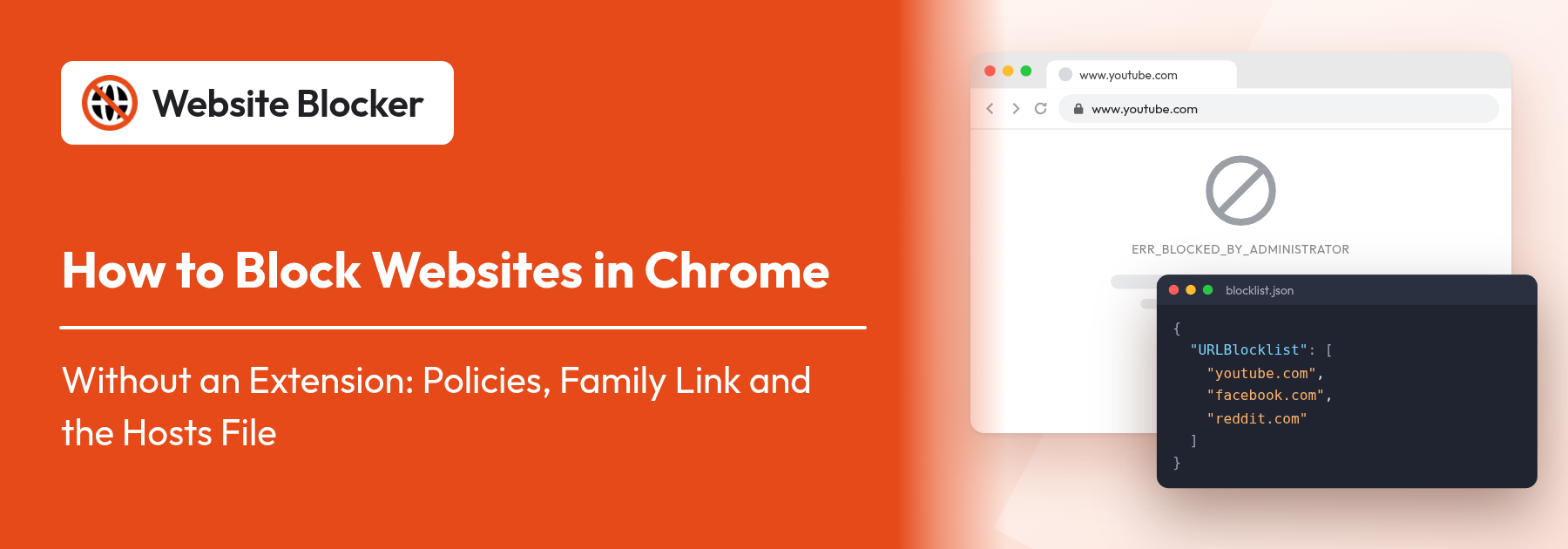

If you want to know how to block websites in Chrome without installing anything, there are four real options: Chrome's own URLBlocklist policy, Google Family Link for a child's account, the computer's hosts file, and filtering on your router or DNS. Each one works, but each needs admin rights or a parent account, and none of them can block a site only during work hours. This guide shows how to set up each method, what Chrome's Site settings and SafeSearch can't do, and when an extension is the simpler choice.
Extension: https://chromewebstore.google.com/detail/website-blocker/kniediipngcpmbmpeacaoinhoeipfina
Yes. Chrome has no "block this site" button in its normal settings, but you can still block a website in Chrome with tools that sit outside the browser's menus:
The sections below go through each method, starting with the one built into Chrome itself.
Chrome reads "policies", settings that an administrator sets outside the browser. The URLBlocklist policy holds a list of URL patterns, and Chrome refuses to open any page that matches. Older guides call it URLBlacklist; Chrome renamed it URLBlocklist, and the exceptions policy URLWhitelist became URLAllowlist. You need administrator rights to set it, and the steps depend on your operating system.
If you prefer a command, an administrator Command Prompt can add the same entry in one line: reg add "HKLM\SOFTWARE\Policies\Google\Chrome\URLBlocklist" /v 1 /t REG_SZ /d "youtube.com" /f. Change the value name (/v 2, /v 3) for each extra site.
Google Chrome on Linux reads policy files from /etc/opt/chrome/policies/managed/. Create the folder with sudo mkdir -p /etc/opt/chrome/policies/managed, then save a file such as blocklist.json in it (with sudo) containing:
{"URLBlocklist": ["youtube.com", "facebook.com", "reddit.com"]}
Restart Chrome or reload policies at chrome://policy. The file must be valid JSON; if Chrome can't read it, the policy simply doesn't appear on that page.
On a Mac, Chrome policies are deployed with a configuration profile, normally pushed by an MDM (mobile device management) tool, for the com.google.Chrome preference domain. That is the right route for a school or company that already manages its Macs. For a single personal Mac it is a lot of setup, and the hosts file (below) or an extension is usually the easier way to block websites in Chrome.
Open chrome://policy. URLBlocklist should be listed with your sites and a status of OK. Now try a blocked site: Chrome shows an error page with the code ERR_BLOCKED_BY_ADMINISTRATOR, explaining that your administrator or organization has blocked the page (the exact wording varies by Chrome version). The Chrome menu and settings will also say the browser is managed by your organization. That label is expected whenever any policy is set, and it disappears when you remove all policies.
Policies can do more than block sites. On Windows, the same registry branch can force-install an extension so it can't be removed from Chrome. Our guide to preventing Website Blocker removal with the Windows registry shows how, if you want schedules and limits that can't be uninstalled.
If you're blocking sites for a child, Google Family Link is designed for that. The child needs a Google account supervised by your account. You then manage their Chrome settings from the Family Link app or from Family Link on the web.
Google renames these menus from time to time, so the labels in your app may differ slightly. The settings apply to Chrome on Android and to Chrome on a computer when the child is signed in with their supervised account. They don't apply to other browsers, or to Chrome when someone uses it without signing in to the child's account, so on a shared computer combine Family Link with the policy or hosts file method.
The hosts file maps domain names to IP addresses before your computer asks a DNS server. Point a domain at 0.0.0.0 and it can't load, in Chrome or anywhere else on that computer.
Things to know before you rely on it:
Many home routers have parental controls or a URL or domain filter in their admin page, and some DNS services let you keep a block list or block whole categories. Set it once and it covers every device on that network, phones and tablets included. The trade-offs: the options depend entirely on your router or provider, the filter usually works on domains rather than individual pages, and it stops working as soon as a device leaves the network or switches to mobile data. For how this compares with browser-level blocking, see our explainer on what a website blocker is and how it works.
Two Chrome settings sound like blockers but aren't:
Chrome on Android and iPhone doesn't run extensions, so no extension can block sites there. On Android, Family Link (above) is the realistic built-in option for a child's phone. On an iPhone, Apple's Screen Time has a web content setting where you can add sites to a "never allow" list; the menu names vary by iOS version. Router or DNS filtering also covers phones, but only while they are on your network.
| Method | Who it suits | Needs admin? | Schedules? | Blocks in other browsers? | Easy to undo? |
|---|---|---|---|---|---|
| Chrome policy (URLBlocklist) | Shared, family or work computers | Yes | No | No, Chrome only | Only for an administrator |
| Google Family Link | Parents of a child with a supervised account | Parent's Google account | Not for the site list | No, Chrome only | Only from the parent's account |
| Hosts file | One computer, every browser | Yes | No | Yes, all browsers and apps | Only for an administrator |
| Router or DNS filtering | A whole household network | Router or DNS account access | Depends on the router or service | Yes, on that network | Only for whoever manages the router |
| Website Blocker extension (for comparison) | Your own focus on a desktop browser | No | Yes | No, but it's also available for Edge and Firefox | Yes, from the toolbar (lock it with a password) |
The built-in methods are made for administrators and parents. They are strict, but they are also all-or-nothing. If you're blocking distractions for yourself, an extension usually fits better:
There is an honest trade-off: a user can turn an extension off or remove it. Website Blocker can lock its settings with a password, needs Allow in Incognito to block in Incognito windows, and can be force-installed with the policy method above so it can't be removed. Our step-by-step guide on how to block websites on Chrome with the extension covers installing it, adding sites and choosing a block type.
You can block websites in Chrome without an extension: URLBlocklist for a computer you administer, Family Link for a child's account, the hosts file for every browser on one machine, and your router for the whole network. They suit firm, always-on blocks set by an administrator or parent. If you want to block sites for yourself, on a schedule or with time limits, and without admin rights, try the free website blocker extension from the Chrome Web Store.
Yes. You can set Chrome's URLBlocklist policy (Windows registry, a JSON file on Linux, or a configuration profile on a Mac), use Google Family Link for a child's supervised account, add the site to the computer's hosts file, or filter it on your router or DNS service. Each method needs administrator rights, a parent account or router access, and none of them can block a site only at certain times.
Open regedit as an administrator and go to HKEY_LOCAL_MACHINE\SOFTWARE\Policies\Google\Chrome\URLBlocklist, creating the keys if needed. Add a String Value named 1 with the site as its data, for example youtube.com, then 2, 3 and so on for more sites. Restart Chrome or click Reload policies at chrome://policy. Blocked pages then show ERR_BLOCKED_BY_ADMINISTRATOR.
Chrome shows that label whenever a policy is set on the computer, including the URLBlocklist policy you added. It is expected and doesn't mean anyone else controls your browser. The label goes away when you remove all Chrome policies.
No. Site settings only control what a site may do, such as notifications, pop-ups, location or camera access. They can't stop a site from opening. SafeSearch doesn't block sites either; it only filters explicit results in Google Search.
Yes. The hosts file works at the operating-system level, so a line like 0.0.0.0 example.com blocks that domain in Chrome, other browsers and apps on that computer. It has no wildcards, so add www.example.com and any other subdomain on its own line, and restart Chrome or flush the DNS cache if the site still loads.
Not with Chrome's own tools. The URLBlocklist policy, Family Link's site list and the hosts file block a site all the time. Some routers have scheduled filters. For blocking on chosen days and hours, time limits or attempt limits in Chrome, you need an extension such as Website Blocker.
Chrome on Android and iPhone doesn't run extensions. On Android, Google Family Link lets a parent block sites for a child's supervised account. On an iPhone, Screen Time's web content setting lets you add sites you never want to allow. Router or DNS filtering also works while the phone is on your network.