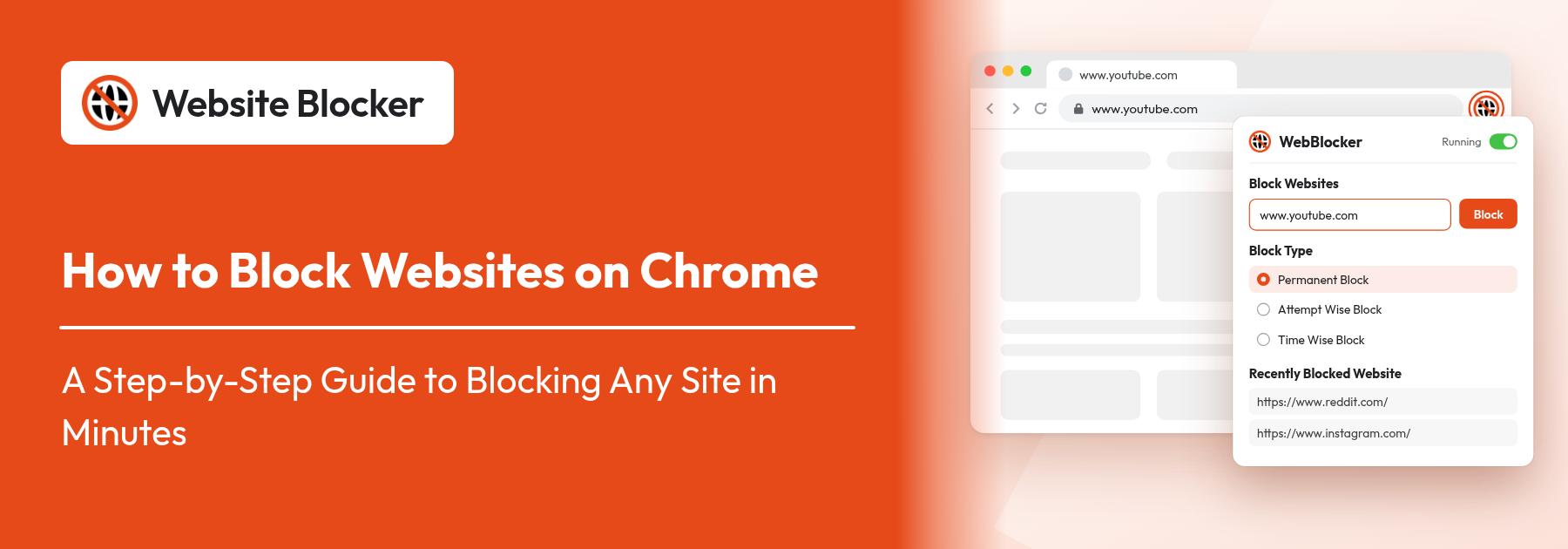

The fastest way to block websites on Chrome is a free extension: install Website Blocker, click its icon, enter the site's address and click Block. From then on the site shows a block page instead of loading, in every tab, until you remove the rule. This guide covers each step, then shows how to block a single page, block a site only at certain times, keep the block working in Incognito, and fix a site that still opens.
Extension: https://chromewebstore.google.com/detail/website-blocker/kniediipngcpmbmpeacaoinhoeipfina
Not one you can switch on in Settings. Chrome's Site settings control what a site may do (notifications, pop-ups, camera), but they cannot stop the site from loading. Chrome's real blocking tools are meant for administrators and parents: an organization or computer admin can block addresses with a Chrome policy, and parents can block sites on a child's Google Account with Family Link. Both work, but they take setup and are not something you can turn on for yourself in a minute. We compare them, along with the hosts file (which needs admin rights), in how to block websites in Chrome without an extension.
For most people, an extension is the quickest way to block a website on Chrome, and it is the method this guide uses. If you want the background first, see what a website blocker is and how it works.
One limit up front: Chrome on Android and iPhone does not run extensions, so these steps work on a computer (Windows, Mac, Linux or a Chromebook), not on your phone.
The whole setup takes about two minutes. You only do steps 1 and 2 once.
Open Website Blocker on the Chrome Web Store and click Add to Chrome. In the dialog that opens, click Add extension. The extension is free, and blocking as many sites as you like does not cost anything.
Chrome hides new extensions behind the puzzle-piece Extensions button to the right of the address bar. Click it, find Website Blocker in the list and click the pin icon next to it. The icon now stays in the toolbar, one click away.
Click the Website Blocker icon. The popup (its header reads WebBlocker) has a field under Block Websites with the placeholder "e.g. https://www.google.com". If you open the popup while you are on the site you want to block, the field is already filled in with that site's address. Otherwise, type it in.
What you type matters. By default the rule blocks every address that contains your text, so a short entry catches more:
Under Block Type, leave Permanent Block selected. It is the default, and it means the site is always blocked. Click Block. The site appears under Recently Blocked Website right away, and there is no Save button to look for.
Repeat steps 3 and 4 for every site you want to block on Chrome. To block sites on Chrome in bulk, you can import a list from a CSV file instead of adding them one by one.
Open a new tab and go to the site. Instead of the page you should see the block screen with the message "Looks like you've reached a dead end". If the site was already open in a tab, reload that tab.
You can change what the block page shows in Settings: write your own custom message, redirect blocked sites to a useful page (for all sites, or per rule), add a Reason to a rule so your own words appear on the block screen, or close the blocked tab automatically after a few seconds.
Every rule has a Filter URL setting with two options. You set it on the Settings page (the gear icon in the popup) when you add or edit a rule:
You can also use "*" as a wildcard in Contain mode. Here is how the options combine:
| What you enter | Filter URL | What gets blocked |
|---|---|---|
| youtube.com | Contain | The whole site, including subdomains such as m.youtube.com |
| reddit.com/r/news | Contain | That section and every page inside it |
| https://www.example.com/page | Exact | Only that one page; the rest of the site stays open |
| https://shop.com/*/checkout/ | Contain + wildcard | Matching pages such as https://shop.com/user1/checkout/ |
| * | Contain + wildcard | Every site except Chrome's internal pages and the extension's own page |
Two things to watch. Contain matches the text anywhere in the address, so a very short word (say, "news") also blocks unrelated sites that happen to contain it. And wildcards do not work in Exact mode, so remove the "*" if you switch a rule to Exact. There are more examples in keyword and exact URL rules and blocking nested pages with Contain vs Exact.
Permanent Block is the simplest choice, but you don't have to cut a site off completely. The other two block types in the same popup give you a limit instead:
Without a daily reset, a rule that reaches its limit stays blocked until you change it. There is also a Whitelist mode that turns things around: it blocks everything except the sites you allow. Which mode suits which habit is covered in our guide to the Chrome block websites modes, and the feature pages explain scheduled blocking and attempt-based blocking in detail.
A block that is easy to get around doesn't help much. These settings close the usual gaps.
Chrome does not run extensions in Incognito windows unless you allow it, so a blocked site opens normally there. To fix this, go to chrome://extensions, click Details under Website Blocker and turn on Allow in Incognito. More on this in blocking websites in Incognito mode.
Click Create Password in the popup, set a password and choose a security question and answer. After that, changing your rules or settings requires the password. If you forget the password, you can reset it with the security answer. Remember at least one of them, because if you forget both there is no way to recover access. See password protection.
With Pro, Disable Cooldown makes you wait before the extension can be switched off. The pause is often enough for the urge to pass. Read how the cooldown timer stops impulsive unblocking. Pro costs $2.99 a month or $14.99 a year, with a 14-day free trial.
Anyone who can open chrome://extensions can still disable or remove an extension, and a password cannot prevent that. If you manage the computer, a browser policy can keep the extension installed: see preventing removal in Chrome on Windows (registry) and preventing removal in Firefox (policies.json).
If you created a password, the extension asks for it before these changes. Every blocked visit is also logged on the History page, which you can turn off or clear. See block history.
If a site you blocked on Chrome still loads, one of these is almost always the reason:
| What you see | Likely cause | Fix |
|---|---|---|
| Nothing is blocked at all | The popup header shows Paused | Click the toggle so it reads Running |
| One site is not blocked | Its Rule Status is Off | Turn Rule Status on in the Block List |
| Only some pages are blocked | The rule uses Exact, or the entry is longer than needed (for example a full https://www... address) | Switch to Contain and enter just the domain, such as youtube.com |
| Blocked in normal windows, open in Incognito | The extension is not allowed in Incognito | Turn on Allow in Incognito in chrome://extensions |
| Works in one window, not another | The other window uses a different Chrome profile or Guest mode | Extensions are installed per profile; add Website Blocker to that profile too (Guest mode runs no extensions) |
| A tab that was already open still shows the site | The page loaded before the rule was added | Reload the tab |
| The site opens sometimes | The rule is Attempt Wise, Time Wise or on a schedule | That is expected; switch to Permanent Block for an always-on block |
Website Blocker is also available for Microsoft Edge and Firefox, with the same popup, block types and settings, so the steps above carry over almost unchanged:
Rules are stored in each browser separately. To copy them across, export your settings as a JSON file and import it in the other browser: see backup and restore. For help choosing what to block and building a routine around it, read which websites to block to stop distractions.
Learning how to block websites on Chrome takes a couple of minutes: install the extension, enter the site, keep Permanent Block and click Block. Then close the gaps: allow the extension in Incognito, add a password, and use Contain or Exact to block exactly what you mean. When you want limits instead of a hard block, switch to Attempt Wise Block, Time Wise Block or a schedule.
If you are still comparing tools, our checklist of what a good site blocker Chrome extension should do may help. Otherwise, add Website Blocker to Chrome and block the first site that keeps pulling you away. It is free, and you can pause or remove any rule whenever you like.
Install Website Blocker from the Chrome Web Store (Add to Chrome, then Add extension). Click its toolbar icon, enter the site's address under Block Websites, keep Permanent Block selected and click Block. The free version blocks as many sites as you like.
Chrome has no simple on/off setting for it. Administrators can block addresses with a Chrome policy, parents can use Google Family Link on a child's account, and the hosts file blocks a site for the whole computer but needs admin rights. For blocking sites yourself, an extension is the quickest option.
Yes, unless you allow the extension there. Chrome does not run extensions in Incognito by default. Go to chrome://extensions, click Details under Website Blocker and turn on Allow in Incognito.
Not with an extension. Chrome on Android and iPhone does not run extensions, so Website Blocker works only in Chrome, Edge and Firefox on a computer.
Open the popup and click the trash icon next to the site under Recently Blocked Website, or delete it from the Block List in Settings. To unblock it only for a while, set the rule's Rule Status to Off, or click the Running toggle to pause all blocking.
Open the rule in Settings, set Filter URL to Exact and enter the full address of that page. The default, Contain, blocks every address that includes your text, so entering youtube.com blocks the whole site.
Usually blocking is paused (the popup shows Paused), the rule's Rule Status is Off, you are in an Incognito window without Allow in Incognito, you are using a different Chrome profile, or the tab was already open before you added the rule. In the last case, reload the tab.