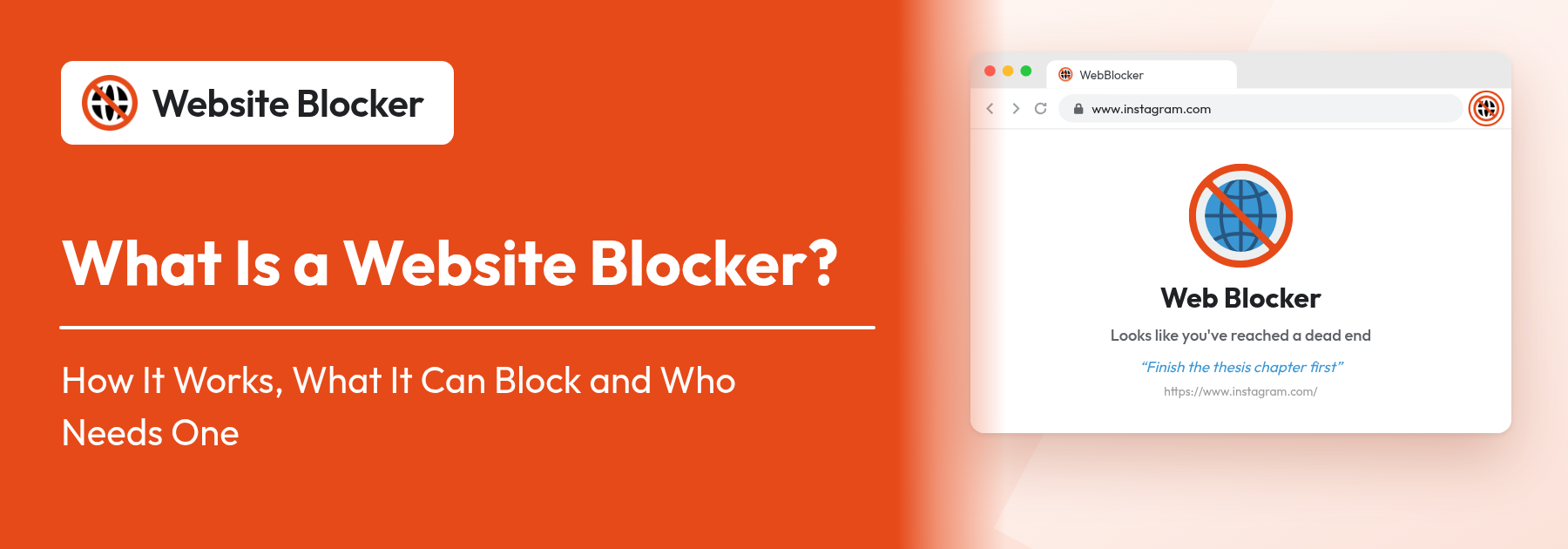

A website blocker is a tool that stops chosen websites from opening, usually by checking each address you visit against a list of rules you set and showing a block page instead of the site. Some block sites all the time, others only during set hours or after a time or visit limit. This guide explains how a website blocker works, the main types (browser extension, desktop app, DNS filter, router and parental controls), what a website blocker can and can't block, and who it actually helps.
Extension: https://chromewebstore.google.com/detail/website-blocker/kniediipngcpmbmpeacaoinhoeipfina
A website blocker sits between you and the web and refuses to load the sites you have put on its list. You decide what goes on the list and when the rules apply; the blocker enforces them so you don't have to rely on willpower every time a tab opens.
The term covers several different tools. A web blocker can be a browser extension, a program installed on the computer, a filter on the DNS server your device uses, a setting on your home router, or the parental controls built into an operating system. They all aim to do the same thing, but they work at different layers, so they differ in what they can block and how easy they are to get around. The comparison table further down sets them side by side.
Most people who search for a website blocker want one for focus: to stop opening social media, video or news sites during work or study. That is also what this article concentrates on. Blocking for children is a related but different job, and we cover the honest limits of that below.
Every website blocker has the same three parts: a set of rules, a moment when it checks those rules, and an action it takes when a rule matches. Using a browser extension as the example, here is what happens step by step.
A rule is an address plus some conditions. In our extension you type a site into the Block Websites field, choose a Block Type and click Block. The block type decides when the rule applies:
Each rule also has a Rule Status switch, so you can pause one rule without deleting it, and the Running toggle in the popup header turns all blocking on or off.
Whenever a tab opens or changes address, the extension reads the new URL and compares it with your rules. The Filter URL setting controls how strict that comparison is:
The finer details of these modes are on the keyword and exact URL rules page, with examples for nested pages and filter modes.
When a rule matches, the website blocker replaces the page. By default you see a block screen that says "Looks like you've reached a dead end". You can change what happens:
Keyword blocking looks at the page itself rather than its address. A small script reads the text and title of the page, and if any of your blocked words appear, the page is blocked even though its URL isn't on your list. In our extension this is the Pro Keyword Blocking feature.
Whitelist mode turns the logic around. Instead of listing what to block, you list what to allow, and everything else is blocked. That suits exam days or deep-work sessions where you only need two or three sites.
Here is how the common types compare. Details vary by product, so treat this as a general guide rather than a spec sheet.
| Type | Where it works | How precise | Setup | Main weakness |
|---|---|---|---|---|
| Browser extension | The browser it is installed in, on that computer | Very precise: domains, single pages, URL patterns, page text | Install from the browser's store in about a minute, no admin rights | Doesn't cover other browsers or apps; the user can disable it unless policies prevent that |
| Desktop app | Usually every browser on that computer, sometimes desktop apps too | Good, depends on the product | Install a program, often with admin rights | Per computer; more to install and keep running |
| DNS / network filter | Every app on the device (or network) that uses that DNS service | Whole domains only; it can't see individual pages | Change DNS settings on the device or router | Bypassed by changing DNS, a browser's secure DNS setting, or a VPN |
| Router | Every device on your home network | Usually whole domains; depends on the router | Router admin panel; features vary by model | Stops working as soon as a device leaves the network (for example, a phone on mobile data) |
| OS parental controls | A child's account on that device | Category filters and allow/block lists; often tied to certain browsers | A parent account manages a child account | Built for families, not for adults managing their own focus |
Another do-it-yourself route is the computer's hosts file, which works like a one-device DNS block and needs administrator rights. We walk through it, along with Chrome policies and router settings, in our guide on how to block websites in Chrome without an extension.
For focus, a browser extension is usually the best fit. Distraction happens in the browser, the extension can block a single page instead of a whole domain, it can apply schedules and limits, and you can change a rule in seconds without touching system settings.
With a browser-extension website blocker like ours, you can block:
Long lists don't have to be typed in one by one: you can bulk block websites with a CSV import.
A browser extension only controls the browser it lives in. Be clear about these limits before you rely on one:
None of this makes a blocker pointless. For focus, the aim is friction, not a locked vault: the few seconds it takes to notice the block page and read your own reason are often enough to change course.
Study sessions break down one "quick check" at a time. Blocking social and video sites during study hours with scheduled blocking, or using Whitelist mode on exam-prep days so only course sites open, keeps the session intact without having to decide again every hour.
At home there is no one to notice an open news tab. A website blocker for focus can block distracting sites during working hours and release them in the evening. Pro Block Profiles let you switch between Work, Study and Relax sets in one click, and the Focus Timer runs Pomodoro-style focus and break cycles.
If cutting a site off completely feels unrealistic, a limit works better than a ban. Attempt Wise Block allows a few visits a day; Time Wise Block allows, say, 30 minutes and then closes the door. Our guide to breaking bad habits with attempt-based blocking shows how to set it up, and the block history shows how often you reached for the site.
On a shared computer you can block a list of sites in the browser and lock the settings with a password. Be honest about what that covers: it is a browser-level block, not full parental control. It doesn't filter other browsers, apps, phones or tablets, and it doesn't replace the parental controls in the operating system or a network filter. For children, combine it with those tools and with conversation.
If you are choosing one, check that it offers:
We go through these features one by one, including free versus paid, in our checklist for choosing a site blocker Chrome extension.
Our website blocker extension is free for unlimited sites, the whitelist, all three block types, schedules, block page settings, history, password protection and import/export. Pro adds keyword blocking, Silent Block Mode, Disable Cooldown, Block Profiles and the Focus Timer for $2.99/month or $14.99/year, with a 14-day free trial. Your block list and settings are stored locally in the browser's extension storage.
That's the whole setup. For each step in detail, plus the Incognito and password settings, follow our guide on how to block websites on Chrome. To match a blocking mode to each habit, read our guide to the Chrome block websites modes, and to decide which sites to put on the list in the first place, see which websites to block to stop distractions.
A website blocker is simply a rule-checker: it compares each address against your list and steps in when one matches. Browser extensions do this most precisely and are the easiest to set up, while DNS filters, routers and parental controls cover more devices with less detail. Know what yours can't reach (other apps, other browsers, mobile Chrome, and a person who switches it off), and use it for what it is good at: putting a pause between you and the sites that eat your day. If you want to try one, add our website blocker extension for free and block your first site in under a minute.
A website blocker is a tool that stops chosen websites from opening. It compares each address you visit with a list of rules you set and, when one matches, shows a block page, redirects you or closes the tab. It can be a browser extension, a desktop app, a DNS filter, a router setting or an operating system's parental controls.
A browser-extension website blocker checks the address of each tab as it loads. If the address matches one of your rules (by containing your text, matching exactly, or matching a wildcard pattern), it replaces the page with a block screen, sends you to a redirect URL, or closes the tab. Keyword blocking also reads the page text, and whitelist mode blocks everything except the sites you allow.
For focus, a browser extension is usually better: it can block single pages and URL patterns, apply schedules and time or visit limits, and is set up in about a minute without admin rights. A DNS filter covers every app on the device or network but only blocks whole domains and can be bypassed by changing DNS settings or using a VPN. Some people use both.
A browser extension only blocks sites in the desktop browser where it is installed. It does not block desktop apps outside the browser, and Chrome on Android and iPhone does not run extensions, so it cannot block sites there. For phones, use the device's own controls or a network-level filter.
Yes. A person can use another browser or device, or disable or remove the extension from the browser's extensions page. A password on the extension's settings and a cooldown before blocking can be turned off add friction, and administrators can use browser policies on Windows or Firefox to prevent the extension from being removed.
Not quite. A browser website blocker blocks the sites on your list in one browser, which suits focus and simple rules on a shared computer. Full parental control usually covers a child's whole account or device, including apps, and is managed by a parent account. For children, combine a website blocker with the operating system's parental controls.
Yes. Unlimited website blocking, the whitelist, all three block types, schedules, block page settings, history, password protection and import/export are free. Pro adds keyword blocking, Silent Block Mode, Disable Cooldown, Block Profiles and a Focus Timer for $2.99 a month or $14.99 a year, with a 14-day free trial.