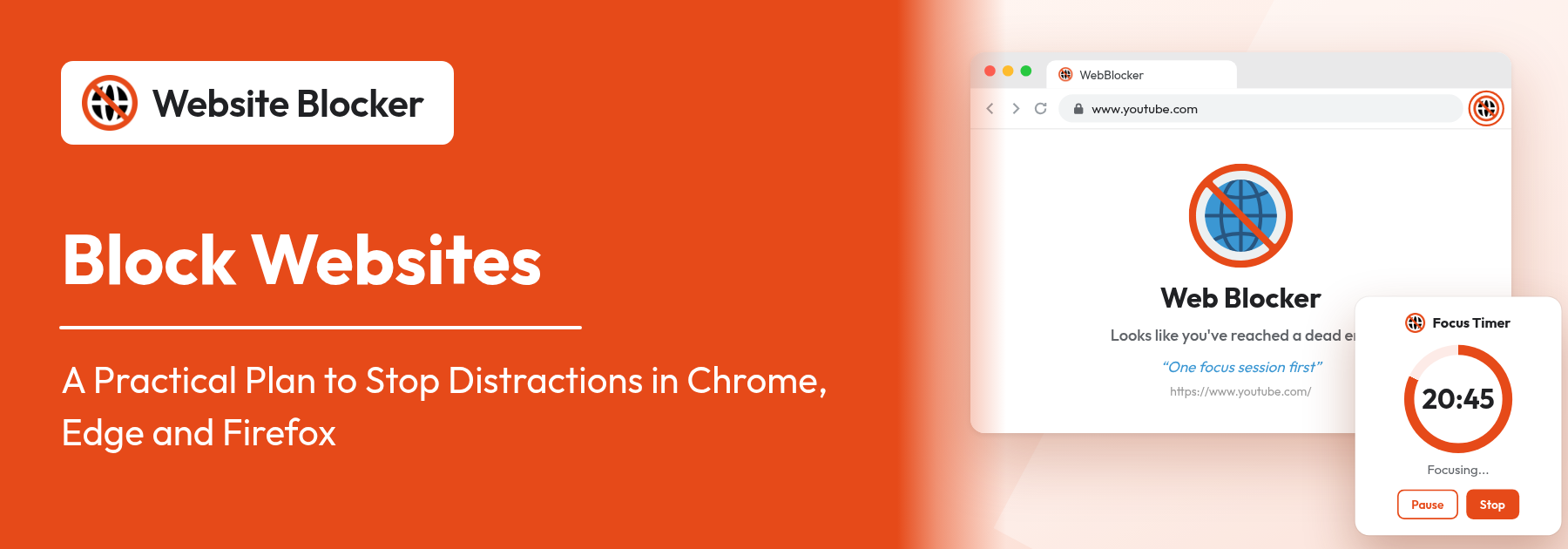

Block Websites to Stop Distractions: A Practical Plan for Chrome, Edge and Firefox

Block websites to stop distractions in Chrome, Edge and Firefox

The fastest way to block websites that pull you off task is a short plan. Decide which sites cost you the most time, give each one the right kind of block, protect your focus hours with a schedule, and make the blocks hard to undo on impulse. This guide walks through that plan step by step with the free Website Blocker extension, and the same plan works in Chrome, Edge and Firefox.

Extension: https://chromewebstore.google.com/detail/website-blocker/kniediipngcpmbmpeacaoinhoeipfina

The short answer

If you only have five minutes, do this:

  1. Install Website Blocker from the Chrome Web Store (or from the Edge or Firefox store, linked below) and pin it to your toolbar.
  2. List the three to five sites you open without deciding to. For most people that is a social feed, a video site and a news or forum site.
  3. Click the toolbar icon, type each site under Block Websites, keep Permanent Block for the worst one, and click Block.
  4. For sites you need some of the time, choose Time Wise Block and either a daily time limit or a Custom Schedule for your work or study hours.
  5. Click Create Password so a blocked site is not one click away from being unblocked.

The rest of this article explains how to choose those sites well, which block fits which site, and three ready-made plans you can copy.

Why it works better to block websites than to rely on willpower

Most distraction is not a decision. You open a new tab, type the first letters of a familiar address, and the browser finishes the rest. By the time you notice, you are ten posts into a feed. Willpower has to win that moment many times a day, often while you are tired or stuck.

A blocker changes the moment itself. Instead of the feed, you see a block page. That small piece of friction turns an automatic habit back into a choice, and once it is a choice, most people simply close the tab and go back to work. You made the rule once, when you were thinking clearly. The tool keeps the rule for you later.

Blocking also changes your defaults. When a site is blocked during work hours, "not visiting" becomes the normal state, and you no longer have to decide each time.

Be honest about the limits, though. A browser extension works only in the browsers where it is installed, and the person who installed it can still turn it off or remove it. The goal is not to make a site impossible to reach. The goal is to make reaching it slow enough that you notice what you are doing.

Step 1: Decide which websites to block

A good block list is short and specific. A huge list on day one tends to get switched off soon after. Start with the sites that actually cost you time. These categories cover most distracting websites:

  • Social media: feeds that never end and refresh every time you open them.
  • Video: autoplay and recommendations turn one clip into an hour.
  • News: checking headlines "for a second" several times an hour.
  • Shopping: browsing deals and product pages you were not planning to buy.
  • Games: browser games and game-related sites.
  • Forums and aggregators: link sites and discussion boards where every thread leads to three more.

The "opened without deciding to" test

For each site on your list, ask one question: "Do I usually open this on purpose, or do I just find myself there?" A site you open with a clear task, finish and close is not the problem. A site you open out of habit, when you are bored or stuck, is the one to block. The same site can fall on either side for different people. A video site may be essential for a design student and a pure time sink for someone writing a report.

Check what you actually try to open

Guesses are often wrong, so use data. Website Blocker keeps a History of blocked visits: the address, whether it was blocked, the match type and the date and time. A simple way to use it:

  1. Block your candidate sites for one normal week.
  2. Open the extension's Settings, then History.
  3. Look at which sites you hit most often and at what times of day.

The sites that show up again and again belong on your permanent list. Sites you never tried to open can come off it. If you already keep your list in a spreadsheet, you can import the block list as a CSV file instead of typing each site.

Type addresses so they match the right pages

By default the extension uses Contain matching, which blocks any address that contains the text you typed. Typing "reddit.com" covers every page and subdomain of that site. Be careful with very short addresses: "x.com" is also part of "netflix.com" and "dropbox.com". For short domains, type the full address ("https://x.com") or switch the rule to Exact. Our guide to Contain and Exact URL rules covers this in detail.

Step 2: Pick the right block for each site

Not every site deserves the same treatment. Website Blocker has three block types, and choosing well is what keeps your plan realistic:

  • Permanent Block: the site is always blocked. Use it for sites with no real value to you during the week, such as a game site or a feed you have decided to quit.
  • Time Wise Block: either a time limit (After 1 Minute, After 5 Minute, After 10 Minute, After 30 Minute, After 1 Hour or Custom Minutes, with an optional Reset time limit daily), or a Custom Schedule that blocks the site on chosen days and hours. Use it for sites you need, but not all day.
  • Attempt Wise Block: the site opens a set number of times, then it is blocked. Turn on Reset attempt daily for a fresh allowance each day. This suits "checking" habits, such as refreshing a news site or a sports score page.

A practical rule of thumb: Permanent Block for the sites that failed the "opened without deciding to" test, a time limit for entertainment you want to keep in small doses, attempts for compulsive checking, and a schedule for anything that is fine in the evening but not during work. For a complete comparison of every mode with a "which mode for which habit" table, read our Chrome block websites guide.

Step 3: Protect your focus hours

Once your list is ready, decide when it applies. There are two ways to protect focus time.

Block websites on a schedule

In the popup, choose Time Wise Block, then Custom Schedule. Under Select days & time, choose the days with Select Days, set a Start Time and an End Time, click Add (you can add more than one time range for the same day), then click Set Time, which saves the rule. The site is blocked only inside those hours. This is the simplest way to block websites to focus at work, or to block websites while studying, for example Monday to Friday, 9:00 to 12:30 and 13:30 to 17:30. More ideas are in scheduled blocking.

Use Whitelist mode for exam days and deep work

Sometimes the list of allowed sites is much shorter than the list of distractions. Then it is easier to flip the approach. Turn on Whitelist mode (the toggle at the top of the popup) and add only the sites you need, such as your course portal, a documentation site or your company tools. Everything else is blocked. You can allow a site permanently (Permanent Allow), for a number of visits (Attempt Wise Allow), or only on certain days and hours (Schedule whitelist). Whitelist mode is strict, so it works best for short, intense periods like exam revision or a deadline day, not as your everyday setup.

Step 4: Work in focus sessions

Blocking removes the distraction. A session structure gives you something to do instead. Many people work in short, timed sessions with a break in between, often called the Pomodoro technique.

Website Blocker Pro includes a Focus Timer. You can start a 25-minute session from the popup with the Focus toggle, or set your own focus and break lengths and the number of cycles in Settings. The toolbar badge shows the minutes left, and a notification tells you when to take a break and when to start again. Your block list stays active while you focus. During the break, the extension lets blocked sites through until the break ends, so a short scroll at break time does not mean editing your rules.

On the free version, you can get much of the same effect with a Custom Schedule that matches your sessions. For example, block your distraction list from 9:00 to 10:30 and from 10:45 to 12:15. The 15-minute gap is your break.

Step 5: Make it hard to undo on impulse

The weak point of any plan is the moment you want to switch it off. Add a few layers so that moment passes before you act on it:

  • Password: click Create Password to lock your settings. You also set a security question for recovery. Remember both, because if you forget the password and the answer there is no way to recover access.
  • Private windows: browsers do not run extensions in Incognito or private windows by default. In Chrome, open chrome://extensions, click Details under Website Blocker and turn on Allow in Incognito. See blocking websites in Incognito mode.
  • A reason in your own words: when you add or edit a rule in Settings, fill in the optional Reason field, for example "I want to finish my thesis". It appears on the block screen, which is a much stronger reminder than a generic message. You can also set a custom block page message or redirect blocked sites to a useful page.
  • Disable Cooldown (Pro): adds a wait of 5 to 300 seconds (30 by default) before the extension can be turned off. Most urges fade within that wait. Read more about the bypass prevention cooldown.

If you set this up for someone else on a shared or family computer, policies can also stop the extension from being removed, on Windows through the registry or in Firefox through policies.json.

Three sample plans you can copy

Adjust the sites and hours to your own week.

PlanWhat to blockHow to block itExtra protection
Student in exam weekEverything except course sites during revision hoursWhitelist mode with your course portal, library and notes app on Permanent Allow; one video site on Attempt Wise Allow (2 visits a day) for lecturesPassword, Allow in Incognito, a Reason such as "Exam on Friday"
Remote workerSocial media, video, news and shoppingSocial and video on Custom Schedule (Mon–Fri, 9:00–17:30); news on Attempt Wise Block (3 a day, Reset attempt daily); shopping on Permanent BlockFocus Timer sessions (Pro), Disable Cooldown (Pro)
Evenings and bedtimeVideo, social media and forums late at nightVideo on Time Wise Block with a 1-hour limit and Reset time limit daily; social and forums on Custom Schedule (every day, 22:30–23:59 and 00:00–07:00)Redirect to a reading or audio page; password

Two notes on these plans. First, a schedule that crosses midnight is easiest to set as two ranges, one ending at 23:59 and one starting at 00:00. Second, if you switch between plans often, Pro Block Profiles let you save sets such as Work, Study and Relax and switch between them in one click.

Block websites on Edge and Firefox too

Website Blocker is the same extension in all three desktop browsers, with the same popup, block types, schedules, Whitelist mode and Pro features. If you use more than one browser, install it in each one. Otherwise the browser without it becomes the easy way around your plan.

  • Microsoft Edge: install from Edge Add-ons. To block websites on Edge in InPrivate windows as well, open edge://extensions, click Details under Website Blocker and turn on the option to allow it in InPrivate (labelled "Allow in InPrivate" in current versions).
  • Firefox: install from Firefox Add-ons with Add to Firefox. To block websites on Firefox in private windows, open about:addons, select Website Blocker and set "Run in Private Windows" to Allow. The exact wording can differ between Firefox versions.

Your rules do not sync between browsers automatically. To copy your setup, export all settings as a JSON file in one browser and import it in the other. See backup and restore of all settings.

One honest limit: Chrome on Android and iPhone does not run extensions, so this extension cannot block sites on your phone. For a phone, look at the options in our guide on how to block websites in Chrome without an extension, such as Google Family Link.

Conclusion

To block websites in a way that lasts, keep the list short and based on what you actually open, pick a block type for each site, protect your focus hours with a schedule or Whitelist mode, and add a password and a reason so the rules hold when you are tempted. Review your History after a week or two and adjust.

If you are setting up the extension for the first time, our step-by-step guide on how to block websites on Chrome covers installation and every setting. Or get the free website blocker extension now and block distracting websites today, starting with your three worst.

Frequently Asked Questions:

  1. 1. Which websites should I block to stop distractions?

    Start with the three to five sites you open without deciding to, usually a social media feed, a video site, and a news or forum site. Shopping and game sites are common too. Block your candidates for a week, then check the extension's History page to see which sites you actually kept trying to open, and keep those on your list.

  2. 2. Should I block a website permanently or with a time limit?

    Use Permanent Block for sites that have no value to you during the week. Use Time Wise Block with a daily limit (for example After 30 Minute with Reset time limit daily) for entertainment you want in small doses, Attempt Wise Block for compulsive checking, and a Custom Schedule for sites that are fine in the evening but not during work or study hours.

  3. 3. How do I block websites only during work or study hours?

    In the Website Blocker popup, type the site, choose Time Wise Block and then Custom Schedule. Pick the days with Select Days, set a Start Time and an End Time, click Add, then Set Time, which saves the rule. The site is blocked only during those hours. You can add more than one time range for the same day, for example a morning and an afternoon session.

  4. 4. Can I block websites on Edge and Firefox with the same extension?

    Yes. Website Blocker is available for Chrome, Microsoft Edge and Firefox with the same popup, block types, schedules and Whitelist mode. Install it in every browser you use, because rules do not sync between browsers automatically. You can copy your setup by exporting all settings as a JSON file and importing it in the other browser.

  5. 5. Does blocking work in Incognito or private windows?

    Only if you allow it. Browsers do not run extensions in private windows by default. In Chrome, turn on Allow in Incognito on the extension's Details page in chrome://extensions. In Edge, turn on the InPrivate option on the extension's Details page in edge://extensions. In Firefox, set Run in Private Windows to Allow on the extension's page in about:addons.

  6. 6. Can this extension block websites on my phone?

    No. Chrome on Android and iPhone does not run extensions, so Website Blocker works only in desktop Chrome, Edge and Firefox. To limit sites on a phone, you need a different method, such as Google Family Link.

  7. 7. Is Website Blocker free?

    Yes. Unlimited website blocking, all three block types, schedules, Whitelist mode, block page settings, History, password protection and import/export are free. Pro adds the Focus Timer, Keyword Blocking, Silent Block Mode, Disable Cooldown and Block Profiles for $2.99 a month or $14.99 a year, with a 14-day free trial.