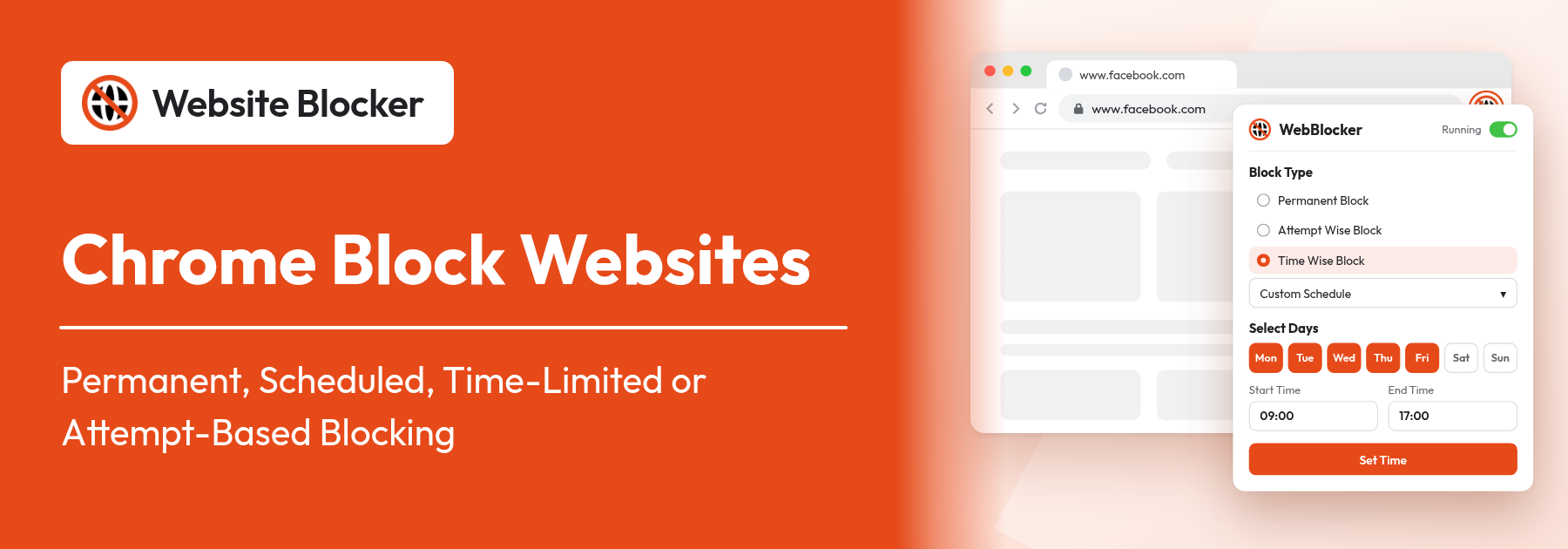

Chrome Block Websites: Permanent, Scheduled, Time-Limited or Attempt-Based Blocking

Chrome block websites on a schedule with Website Blocker's Custom Schedule

Chrome has no site-blocking switch in its normal settings, so to make Chrome block websites you add an extension such as Website Blocker. Once that is done, the useful question is not whether a site gets blocked but how: all the time, only during work hours, after 30 minutes a day, after three visits, or everything except a short list of sites you allow. This guide covers those five blocking modes, with the exact setting names, setup steps and an example for each.

Extension: https://chromewebstore.google.com/detail/website-blocker/kniediipngcpmbmpeacaoinhoeipfina

Chrome block websites: the five modes at a glance

Every rule in Website Blocker starts the same way. You click the extension's toolbar icon, type or paste an address into the Block Websites field (the placeholder reads "e.g. https://www.google.com") and choose a Block Type. The block type decides when the site is closed to you:

  • Permanent Block blocks the site at all times. This is the default.
  • Time Wise Block → Custom Schedule blocks the site only on the days and hours you choose.
  • Time Wise Block with a time limit (After 1 Minute up to After 1 Hour, or Custom Minutes) gives you a set amount of time on the site, then blocks it.
  • Attempt Wise Block lets you open the site a set number of times, then blocks it.
  • Whitelist mode turns everything around: every site is blocked except the ones you allow.

You can mix modes freely, one per site. If you have never installed a blocker before, start with our step-by-step guide on how to block websites on Chrome, then come back here to choose the right mode for each site.

1. Permanent Block: sites you have decided to quit

What it does: the site is blocked every time you open it, whatever the day or time. Instead of the page you see the block page ("Looks like you've reached a dead end", or your own message).

When to use it: for sites you have no reason to visit on this computer, such as a game you have given up or a betting site.

Set it up:

  1. Click the Website Blocker icon in the Chrome toolbar (pin it from the puzzle-piece Extensions button if you can't see it).
  2. Type the address into the Block Websites field, for example https://www.example.com.
  3. Leave Permanent Block selected and click Block.

The site appears under Recently Blocked Website and is blocked straight away (see one-click blocking).

Example: you have decided to stop playing a browser game. Block it permanently, then add a password with Create Password so that undoing the block takes more than two clicks (see password protection).

2. Block websites on a schedule in Chrome (Custom Schedule)

What it does: the site is blocked only on the days and during the hours you choose. Outside those hours it opens normally.

When to use it: when a site is fine in your free time but costs you focus during work or study hours. This is how Chrome can block websites during work hours without keeping you off them in the evening or at the weekend.

Set it up:

  1. Open the popup and enter the address in Block Websites.
  2. Select Time Wise Block. In the drop-down that appears, choose Custom Schedule. A window titled Select days & time opens.
  3. Under Select Days, open the Day list and tick the days, for example Mon, Tue, Wed, Thu and Fri. The rule applies only on the days you tick.
  4. Under Select Time, set the Start Time and End Time, for example 09:00 to 17:00.
  5. To block more than one time range on the same days, click the + button (Add) and set the next range.
  6. Click Set Time (its tooltip reads Set Schedule) to save the rule.

Example: you watch videos when work gets dull. Block https://www.youtube.com with Custom Schedule, Monday to Friday, 09:00 to 12:30 and 13:30 to 17:00. Your lunch break stays open and so do evenings and weekends.

Each time range runs within a single day. To block late at night past midnight, add two ranges, such as 22:00 to 23:59 and 00:00 to 06:00. The scheduled blocking feature page has more schedule ideas.

3. Limit time on websites in Chrome (time limit)

What it does: you get a fixed amount of time on the site, and then it is blocked. The presets are After 1 Minute, After 5 Minute, After 10 Minute, After 30 Minute and After 1 Hour. Custom Minutes lets you type any number of minutes.

When to use it: for sites you need now and then but can't leave once you are on them, such as social feeds.

Set it up:

  1. Enter the address in Block Websites and select Time Wise Block.
  2. Pick a preset from the drop-down, or choose Custom Minutes and type the minutes.
  3. Tick Reset time limit daily if you want a fresh allowance every day.
  4. Click Block.

Two details matter here. First, the timer starts when you open the site and keeps running on the clock, whether or not the tab stays open. "After 30 Minute" means 30 minutes from your first visit, not 30 minutes of active reading. Second, without Reset time limit daily, the site stays blocked after the time runs out until you change the rule yourself. With it, the site opens again the next day.

Example: you open Instagram "for a minute" and lose an hour. Set https://www.instagram.com to Time Wise Block, After 30 Minute, with Reset time limit daily ticked. You can still reply to messages, but the session ends 30 minutes after you first open it each day. The flexible blocking rules page covers the time-based options in more detail.

4. Attempt Wise Block: limit how often you open a site

What it does: you choose how many times the site may be opened (1 to 9999). After that number is used up, the site is blocked. While a counted site is open, the extension's toolbar icon shows how many visits you have left.

When to use it: for "checking" habits, where each visit is short but you make dozens of them: news, sports scores, email, stock prices.

Set it up:

  1. Enter the address in Block Websites.
  2. Select Attempt Wise Block and type the number of allowed visits in the box next to it.
  3. Tick Reset attempt daily so the count starts from zero each day.
  4. Click Block.
English
Settings Help & Support

Block Websites

https://www.bbc.com/news Block

Block Type

Recently Blocked Website

https://www.reddit.com/
https://www.instagram.com/

Example: you check a news site 20 times a day. Set it to Attempt Wise Block with 3 visits and Reset attempt daily, as in the popup above. Morning, lunch and evening still work. The fourth visit hits the block page, and tomorrow you get three again. As with time limits, without the daily reset the site stays blocked until you change the rule. Read more on the attempt-based blocking page, or see how attempt limits help break bad habits.

5. Whitelist mode: block everything except the sites you allow

What it does: with Whitelist mode turned on, every website is blocked except the ones on your whitelist. While it is on, the extension works from the whitelist instead of your block list.

When to use it: when the sites you need are far fewer than the sites that distract you, such as during exam week or on a child's homework computer.

Set it up:

  1. Open the popup and switch on the Whitelist mode toggle. The field changes to Allow websites.
  2. Enter a site you need and choose an Allowed Type: Permanent Allow (always reachable), Attempt Wise Allow (reachable a set number of times, with an optional daily reset) or Schedule whitelist (reachable only on the days and hours you set).
  3. Click Save. Repeat for each site you need.

Example: during exam week, allow your course site, your university email and an online dictionary with Permanent Allow, and allow a music site with Schedule whitelist for 19:00 to 21:00 only. Everything else is blocked until you switch Whitelist mode off. If a site sends you to a different address to sign in, allow that address too, or the sign-in page will be blocked.

Which mode for which habit

Pick the mode that matches the habit, not just the site:

HabitModeSuggested setting
Endless scrolling on a social feedTime limitTime Wise Block, After 30 Minute, Reset time limit daily
Checking the news 20 times a dayAttempt limitAttempt Wise Block, 3 visits, Reset attempt daily
Watching videos during work hoursScheduleTime Wise Block → Custom Schedule, Mon–Fri, 09:00–17:00
Browsing late into the nightScheduleCustom Schedule, every day, 22:00–23:59 and 00:00–06:00
Exam week or a hard deadlineWhitelistWhitelist mode, study sites on Permanent Allow
A site you have quit for goodPermanentPermanent Block, plus a password
Impulse shoppingAttempt or time limitAttempt Wise Block, 1 visit, Reset attempt daily

Fine-tune any mode: matching, rule status, redirect and reason

The popup adds rules quickly with sensible defaults. For finer control, click the Settings gear. The Schedule Blocking of Site form there has the same Block Type options plus four more settings, and the edit icon in the block list opens the same options for an existing rule.

Contain vs Exact matching and wildcards

Filter URL decides which addresses a rule catches. Contain (the default) blocks any address that contains the text you entered, so reddit.com also catches every subreddit and subdomain. Because it matches text anywhere in the address, a short entry can catch more than you expect. Exact only blocks addresses that match what you entered. A full page address such as https://www.reddit.com/r/all blocks that page and leaves the rest of the site open.

With Contain you can also use the * wildcard. For example, https://shop.com/*/checkout/ blocks https://shop.com/user1/checkout/ and every similar checkout page. Wildcards don't work in Exact mode. A rule of just * blocks every URL except Chrome's internal pages and the extension's own page. See keyword and exact URL rules and Contain vs Exact for nested pages for more examples.

Chrome block websites temporarily: Rule Status and the Running toggle

Every rule has a Rule Status switch (On/Off). Turn it Off to pause one rule without deleting it, for example while you research something on a site you normally block, then turn it back On. To pause all blocking at once, use the Running toggle in the popup header. A time limit or a schedule is also a temporary block in itself: the site comes back the next day or outside the blocked hours.

Per-rule Redirect URL and Reason

Turn on Redirect URL on a rule to send that site somewhere useful instead of the block page, such as your task list or a course page. This overrides the global block page setting for that rule only, and the redirect can't be the blocked site itself. The optional Reason field (up to 200 characters) lets you write why you blocked the site, for example "I want to finish my thesis". Your own words appear on the block screen. More on redirecting distractions and custom block page messages.

Pro features that change how the modes work

Every mode above is free. The Pro plan ($2.99/month or $14.99/year, with a 14-day free trial) adds three features that change how the modes fit together:

  • Block Profiles keep separate sets of rules, such as Work, Study and Relax, each with its own block list, whitelist, keywords and settings. Switching profiles swaps the whole set in one click, so you don't have to edit rules one by one. See Block Profiles.
  • Focus Timer runs Pomodoro-style focus and break cycles with custom durations. Start a 25-minute session from the popup's Focus toggle. During a break the extension lets your blocked sites through, and blocking resumes with the next focus session. See the Focus Timer.
  • Keyword Blocking blocks pages whose text or title contains words you choose, even when the address is not on your block list. See Keyword Blocking.

Limits to know before you rely on it

Conclusion

Blocking works best when each site gets the mode that fits the habit behind it: Permanent Block for sites you have quit, a Custom Schedule for work hours, a daily time limit for feeds, an attempt limit for compulsive checking, and Whitelist mode when only a few sites should be open at all. Start with one or two rules, see how the week goes, then adjust. If you are setting up for the first time, our guide on how to block websites on Chrome walks through installation step by step. You can add Website Blocker to Chrome for free, or read more about the website blocker extension.

Frequently Asked Questions:

  1. 1. Can Chrome block websites without an extension?

    Not from Chrome's normal settings. Without an extension you need a Chrome policy, Google Family Link, the hosts file or a router/DNS filter, each with its own limits. An extension such as Website Blocker is the easiest way to block sites in desktop Chrome, and it adds per-site schedules, time limits and attempt limits.

  2. 2. How do I block a website only during work hours in Chrome?

    Open Website Blocker, enter the site, select Time Wise Block and choose Custom Schedule. In the Select days & time window, tick the days (for example Mon to Fri), set the Start Time and End Time (for example 09:00 and 17:00), use + to add more ranges if needed, then click Set Time. Outside those hours the site opens normally.

  3. 3. How do I limit time on a website in Chrome?

    Select Time Wise Block and pick After 1 Minute, After 5 Minute, After 10 Minute, After 30 Minute, After 1 Hour, or Custom Minutes. Tick Reset time limit daily to get a fresh allowance each day. The timer starts when you first open the site and runs on the clock, even if you close the tab.

  4. 4. What happens when an attempt limit or time limit runs out?

    The site shows the block page (or your redirect). If Reset attempt daily or Reset time limit daily is on, the site opens again the next day. If it is off, the site stays blocked until you change or delete the rule.

  5. 5. How do I block a website temporarily and then unblock it?

    Use a schedule or a daily limit, which lift on their own, or turn a rule's Rule Status Off to pause it without deleting it. To pause every rule at once, switch off the Running toggle in the popup header. A password or Disable Cooldown (Pro) makes these switches harder to use on impulse.

  6. 6. What is the difference between Contain and Exact?

    Contain, the default, blocks any address that contains the text you entered, and it supports * wildcards. Exact blocks only addresses that match what you entered. A full page address in Exact mode blocks that page and leaves the rest of the site open. Wildcards don't work in Exact mode.

  7. 7. Are scheduled blocking and time limits free?

    Yes. Permanent, attempt-based and time-based blocking, Custom Schedule, Whitelist mode, block page settings and password protection are all free. Pro ($2.99/month or $14.99/year, 14-day free trial) adds Block Profiles, the Focus Timer, Keyword Blocking, Silent Block Mode and Disable Cooldown.