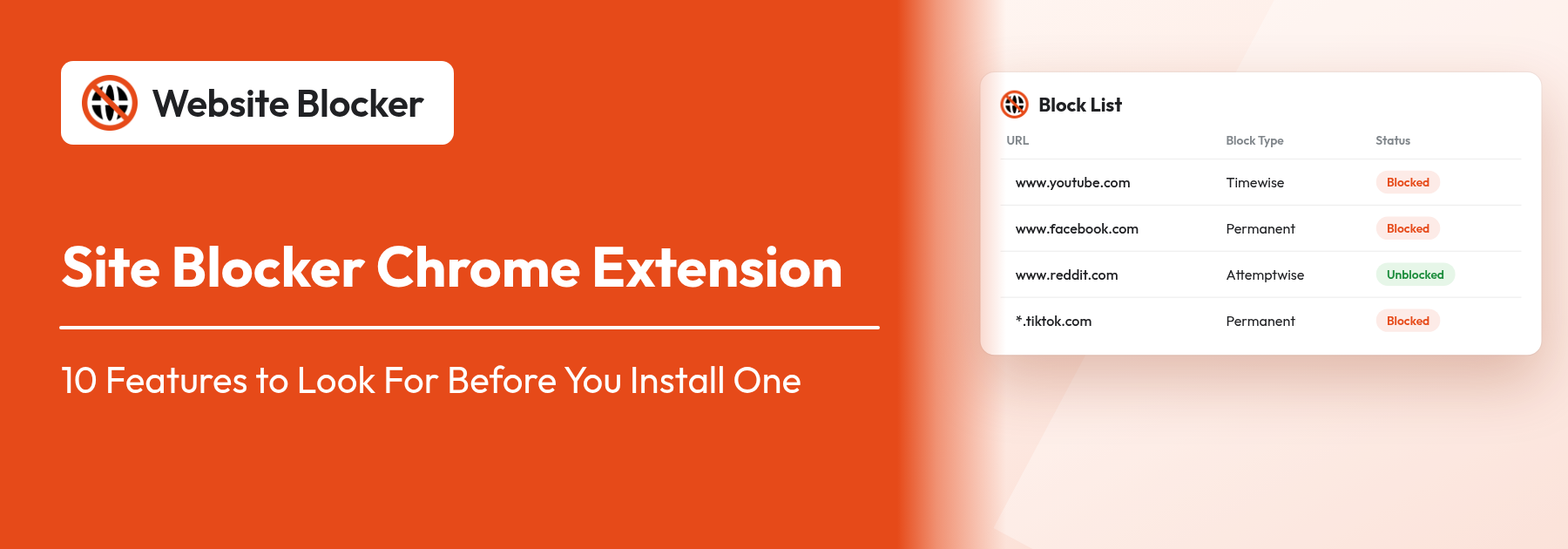

A site blocker Chrome extension stops your browser from opening the websites you choose, so the reflex of checking a feed between tasks runs into a wall instead. Almost any blocker can do that much. The useful ones also let you decide when and how a site is blocked, work in Incognito, and are hard to undo in a weak moment. Here are the 10 features to check before you install one, what to look for in any extension's store listing, and how our Website Blocker handles each one. Pro-only features are marked.
Extension: https://chromewebstore.google.com/detail/website-blocker/kniediipngcpmbmpeacaoinhoeipfina
A basic site blocker keeps a list of addresses and closes them. A useful one adds three things:
Why it matters: you notice a distraction while you are on it. If blocking it means opening a settings page, you will put it off.
What to check: the popup screenshots in the store listing. The address field and block button should be on the first screen.
How Website Blocker handles it: click the toolbar icon, type the address under Block Websites, choose a Block Type and click Block. The site appears under Recently Blocked Website, and the Running toggle in the header turns all blocking on or off. The one-click blocking page shows the flow in detail.
Why it matters: sometimes you want a whole site gone, and sometimes only one page, such as a feed, while the rest stays usable. Exact-address-only matching misses other pages of the site; domain-only matching is too blunt.
What to check: whether the listing mentions match modes, wildcards or blocking specific pages.
How Website Blocker handles it: every rule has a Filter URL setting. Contain (the default) blocks any address that contains your text, so "youtube.com" covers every page on the site. Exact blocks only an address that matches exactly, which is how you block one page and keep the rest. You can use "*" as a wildcard (it does not work in Exact mode), and a rule of just "*" blocks every URL except Chrome's internal pages and the extension's own page. Each rule also has a Rule Status On/Off switch, so you can pause a rule without deleting it. See Contain vs Exact filter modes and exact URL rules for examples.
Why it matters: many sites are fine in the evening and a problem at 10 a.m. A schedule blocks them at set times without you remembering to switch anything on.
What to check: days of the week as well as hours, and more than one time range per day (say, morning and afternoon with lunch free).
How Website Blocker handles it: choose Time Wise Block, then Custom Schedule. In Select days & time, tick the days under Select Days, set a Start Time and End Time, click Add (you can add more than one range for the same day), then click Set Time. Schedules are free. More in scheduled blocking.
Why it matters: a total ban backfires on sites you sometimes need, like a video site with tutorials. A limit lets you in briefly, then closes the door.
What to check: words like "time limit", "daily limit" or "usage limit", and whether the limit resets each day or only once.
How Website Blocker handles it: Time Wise Block blocks a site After 1 Minute, After 5 Minute, After 10 Minute, After 30 Minute, After 1 Hour or after Custom Minutes, with an optional Reset time limit daily. Attempt Wise Block lets you open a site a set number of times before it is blocked, with an optional Reset attempt daily. Read more about flexible time limits and attempt-based blocking. Our guide to Chrome block websites modes shows which mode suits which habit.
Why it matters: for exam revision, a child's homework session or deep work, it is easier to list the five sites you need than the thousands you do not.
What to check: "whitelist", "allowlist" or "block everything except" in the feature list.
How Website Blocker handles it: Whitelist mode blocks every website except the ones you allow. Each allowed site can be a Permanent Allow, an Attempt Wise Allow (a set number of opens) or a Schedule whitelist entry (allowed only on certain days and times). It is part of the free version.
Why it matters: Chrome does not run extensions in Incognito windows by default, so a private window is the easiest way around any blocker.
What to check: whether the help pages explain how to enable Incognito. No extension can switch this on by itself; you allow it in Chrome.
How Website Blocker handles it: open chrome://extensions, click Details under Website Blocker and turn on Allow in Incognito. After that, your rules apply in private windows too. Step-by-step screenshots are on the blocking websites in Incognito page.
Why it matters: on a computer you control, any extension can be turned off or removed. No blocker can change that, but it can add enough friction that the urge passes first.
What to check: password protection, a delay before the blocker can be switched off, and an official way to stop the extension from being removed.
How Website Blocker handles it: Create Password locks your settings behind a password, with a security question for recovery. Disable Cooldown (Pro) adds a wait before the extension can be turned off. For the strongest setup, such as a child's computer, browser policies can stop the extension from being removed: see the guides for Chrome on Windows (registry) and Firefox (policies.json).
Why it matters: a reminder in your own words works better than a generic error, and a redirect can send you straight to something useful.
What to check: a custom block message, a redirect option, and whether you can set them per site or only globally.
How Website Blocker handles it: by default the block page says "Looks like you've reached a dead end". You can replace it with a Custom message or send every blocked visit to a Redirect URL, and a single rule can have its own redirect that overrides the global one. Each rule can also carry an optional Reason (for example "I want to finish my thesis") that is shown on the block screen, and Close blocked page after a number of seconds closes the tab for you. See custom block page messages and redirecting distractions to productive websites.
Why it matters: seeing how often you tried to open a site tells you more about a habit than the block itself.
What to check: a log of blocked visits, and the option to turn it off and clear it, which matters on a shared computer.
How Website Blocker handles it: the History page lists blocked visits with the address and the date and time. You can turn history off and clear it at any time. More on block history.
Why it matters: a block list built up over months should not disappear with a new laptop, and if you use Edge at work and Firefox at home, the blocker needs to run in both.
What to check: export and import options, and whether the same extension is listed in other browsers' add-on stores.
How Website Blocker handles it: you can export and import the block list as a CSV file, which also lets you bulk-block websites with CSV import. You can back up all your settings as a JSON file and restore them on another computer. The extension is available for Chrome, Edge and Firefox. It also has dark mode and more than 40 interface languages.
Everything in the checklist is free except Disable Cooldown. Pro adds four more tools for people who want more control:
To block a page, any site blocker extension has to see which address each tab is opening, so Chrome shows a permissions warning when you install one. That is normal, but you should know what each permission is for. Website Blocker asks for:
You do not need an account to block sites. Your block list stays in the browser. The extension connects to Extfy's own servers for things like checking a Pro license key, loading plan prices and sending a suggestion you choose to submit through the built-in form. When you compare blockers, check that the listing explains its permissions and links to a privacy policy. For background on how browser blockers compare with apps, DNS filters and router settings, see what a website blocker is and how it works.
For most people, yes. A free website blocker Chrome extension can cover the whole checklist; paid plans should add extras, not hold back the basics. Here is exactly what the free version and Pro include:
| Feature | Free | Pro |
|---|---|---|
| Unlimited website blocking | Yes | Yes |
| Permanent, Attempt Wise and Time Wise blocks | Yes | Yes |
| Custom schedules (days and hours) | Yes | Yes |
| Whitelist mode | Yes | Yes |
| Block page message, redirect and auto-close | Yes | Yes |
| Block history | Yes | Yes |
| Password protection | Yes | Yes |
| CSV and JSON import/export | Yes | Yes |
| Dark mode | Yes | Yes |
| Keyword Blocking | No | Yes |
| Silent Block Mode | No | Yes |
| Disable Cooldown | No | Yes |
| Block Profiles | No | Yes |
| Focus Timer | No | Yes |
| Price | Free forever | $2.99/month or $14.99/year, 14-day free trial, cancel anytime |
| Devices | Any browser you install it on | One license works on up to 3 devices |
Pro is worth it if you keep switching the blocker off (Disable Cooldown), if your distractions change every week (Keyword Blocking), or if you want separate rule sets for work and study (Block Profiles).
Whatever site blocker you are considering, run this quick test:
One limit to know before you start: Chrome on Android and iPhone does not run extensions, so no Chrome extension can block sites on your phone. This test, and everything in this checklist, applies to desktop Chrome, Edge and Firefox.
The best site blocker for Chrome is the one you will not switch off on a bad afternoon. Look for one-click blocking, flexible URL matching, schedules and limits, whitelist mode and Incognito coverage first. Then check how hard it is to undo and what it does with your data. Website Blocker covers all 10 in the free version, and Pro adds Disable Cooldown plus the extras above.
Ready to set it up? Follow our step-by-step guide on how to block websites on Chrome, or start from the website blocker extension homepage. If you cannot install extensions on a work computer, see how to block websites in Chrome without an extension.
Check for one-click blocking from the popup, flexible URL matching (whole site or a single page), schedules, time and attempt limits, a whitelist mode, Incognito support, protection against impulsive unblocking (password, cooldown), a block page you can customize, a history of blocked visits, and backup or import/export. Also check which permissions it asks for and what the free version includes.
Yes. Website Blocker is free forever for unlimited website blocking, Permanent, Attempt Wise and Time Wise blocks, custom schedules, whitelist mode, block page settings, history, password protection, CSV and JSON import/export and dark mode. Pro adds Keyword Blocking, Silent Block Mode, Disable Cooldown, Block Profiles and a Focus Timer for $2.99/month or $14.99/year, with a 14-day free trial.
Only if you allow it. Chrome does not run extensions in Incognito windows by default. Open chrome://extensions, click Details under the blocker and turn on Allow in Incognito. After that, your block rules also apply in Incognito windows.
Yes, if the extension supports exact matching. In Website Blocker, the Contain filter (the default) blocks every address that contains your text, such as every page on youtube.com. The Exact filter blocks only an address that matches exactly, so you can block a single page and keep the rest of the site.
On a computer you control, any extension can be turned off or removed, so no blocker is impossible to get around. A good one adds friction: a password on its settings, a wait before it can be turned off (Disable Cooldown in Website Blocker Pro), and, for the strongest setup, browser policies that prevent the extension from being removed on Windows or in Firefox.
A blocker has to see which address each tab opens, so Chrome shows a permissions warning on install. Website Blocker uses storage, tabs, alarms and notifications, plus a content script on pages for Keyword Blocking. Your block list and settings are stored locally in the browser's extension storage, and you do not need an account to block sites.
No. Chrome on Android and iPhone does not run extensions, so a Chrome extension cannot block sites on your phone. Website Blocker works on desktop Chrome, Edge and Firefox.